サンプル: 回転補正付き OCR/レイアウト解析 
このサンプルでは、DocumentAnalyzer の enable_preprocess=True を利用して
傾き・回転している文書画像を自動で補正 (deskew / orientation correction) しながら
OCR とレイアウト解析を実行する方法を示します。
処理前後の可視化結果 (ocr_vis, layout_vis) を保存して確認できます。
対象画像
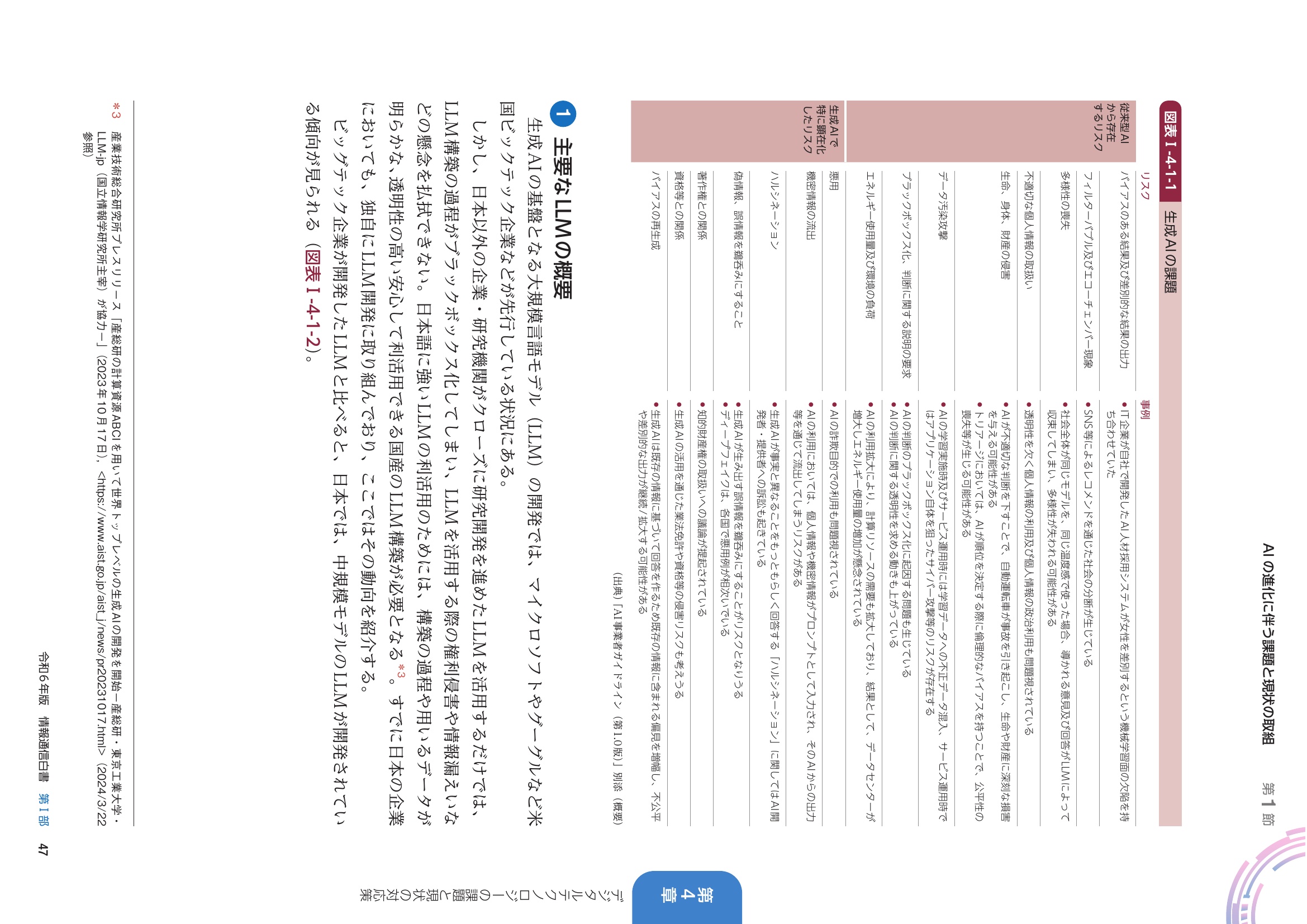
from yomitoku import DocumentAnalyzer
from yomitoku.data.functions import load_image

images = load_image("demo/samples/rotate.jpg")
analyzer = DocumentAnalyzer(visualize=True, device="cuda", enable_preprocess=True)

results = []
for img in images:
    result, ocr_vis, layout_vis = analyzer(img)
    results.append(result)
    result.to_json("demo_rotate_result.json")

analyzer.close()

# # TableSemanticParser で回転補正を利用する場合
# from yomitoku.table_semantic_parser import TableSemanticParser
# from yomitoku.data.functions import load_pdf
#
# images = load_pdf("demo/samples/rotate.jpg")
# analyzer = TableSemanticParser(visualize=True, device="cuda", enable_preprocess=True)
#
# for img in images:
#     results, vis_layout, vis_ocr = analyzer(img)
#     results.to_json("demo_rotate_result.json")
enable_preprocess の効果
| 処理 | 内容 | 既定値 |
|---|---|---|
| Orientation detection | 画像全体の文字方向を推定し、90° 単位で回転補正 | False |
enable_preprocess=True にすると 上記の前処理パイプライン が自動挿入されます。
画像が90度や270度回転した書類でも 高い OCR 精度 を維持できます。
出力結果
入力画像の回転が補正され、YomiTokuの出力結果が取得できます。前処理による補正の結果は以下の用にpreprocessオブジェクトで取得できます。
angle の値 |
意味 |
|---|---|
90 |
時計回り に 90 °回転していたと判定 |
-90 |
反時計回り に 90 °回転していたと判定 |
180 |
上下が逆(180 °回転)と判定 |
angle_score は判定の信頼度を表し、1 に近いほど確信度が高いことを示します。
TableSemanticParser での利用
TableSemanticParser でも同様に enable_preprocess=True を指定することで回転補正を利用できます。
デモコード内にコメントアウトの形でサンプルを記載していますので、用途に応じてご利用ください。